
Table of Contents
Objective #
To create advertising campaigns for 5 SKUs, each associated with a single keyword, using the Campaign Creation Automation Tool.
Pre-Conditions #
- The user has access to the Campaign Creation Automation Tool.
- The user has 5 SKUs and 5 corresponding keywords ready for campaign creation.
Steps to Execute #
Step 1: Select SKUs #
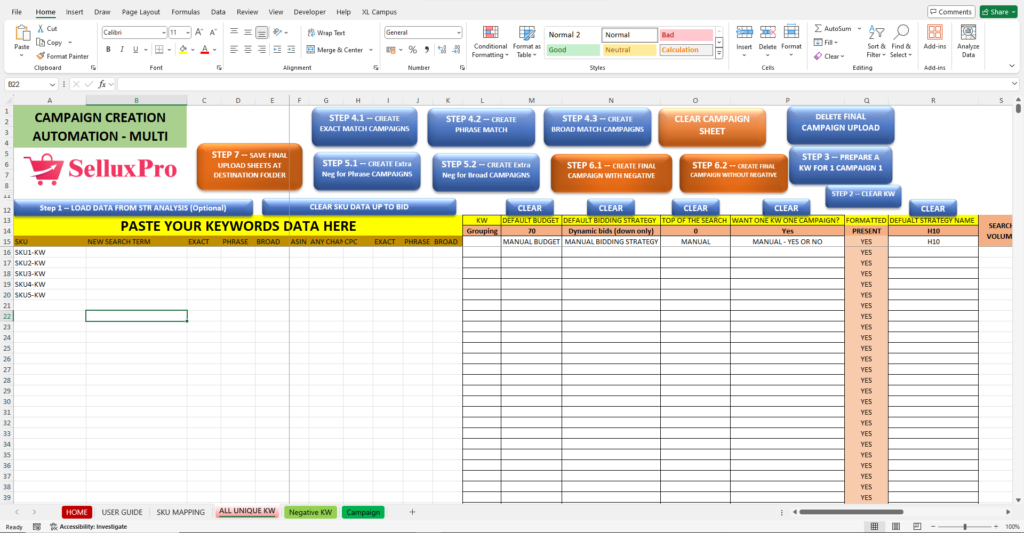
- Action: In the “ALL UNIQUE KW” sheet, select all 5 SKUs from the dropdown menu in Column A.
- Outcome: The selected SKUs are now ready for keyword association.
Step 2: Paste Keywords #
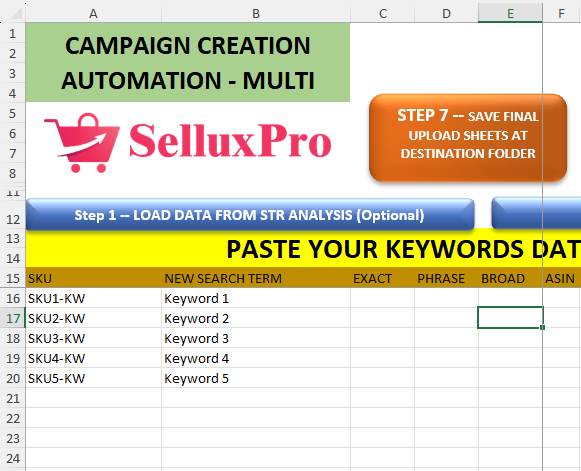
- Action: In Column B, paste the corresponding keyword for each SKU. Ensure that each SKU has its unique keyword listed next to it.
- Outcome: Each SKU is now linked to its respective keyword.
Step 3: Assign UNIQUE Words #
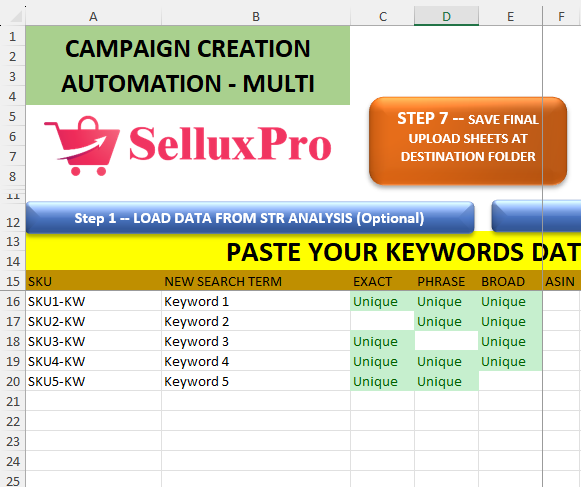
- Action: For each keyword in Column B, enter a UNIQUE word in Column C for Exact match, Column D for Phrase match, and Column E for Broad match campaigns.
- Outcome: UNIQUE words are assigned, facilitating the creation of different match type campaigns.
- It will create a 3 campaigns for SKU1 & Keyword1, 2
Step 4: Allocate Bid Amounts #
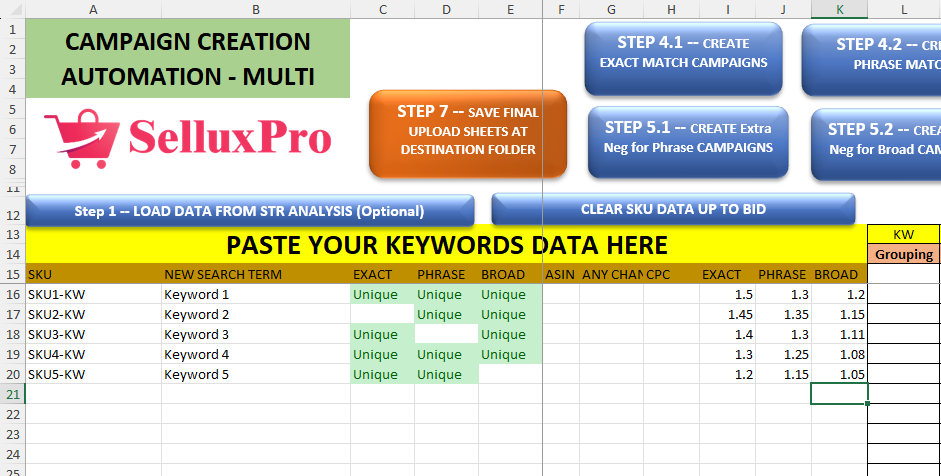
- Action: In Columns I, J, and K, input the bid amounts for Exact, Phrase, and Broad match types respectively.
- Outcome: Bid amounts are set for each match type for the campaigns.
Step 5: Set Campaign Budget #
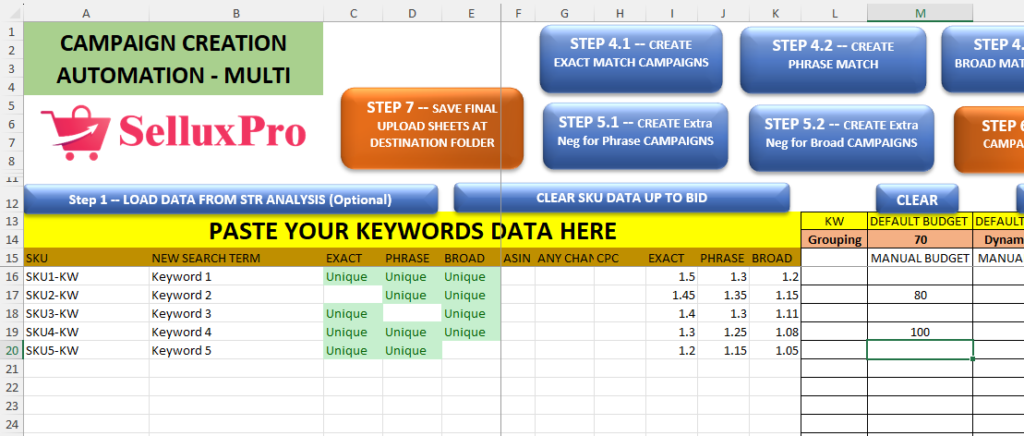
- Action:
- If you want to assign the same budget to all SKUs, set the budget in the header (budget column).
- If each SKU requires a different budget, enter the specific budget for each SKU in the respective budget column.
- Outcome: Campaign budgets are established according to your requirements.
Step 6: Set Bidding Strategy #
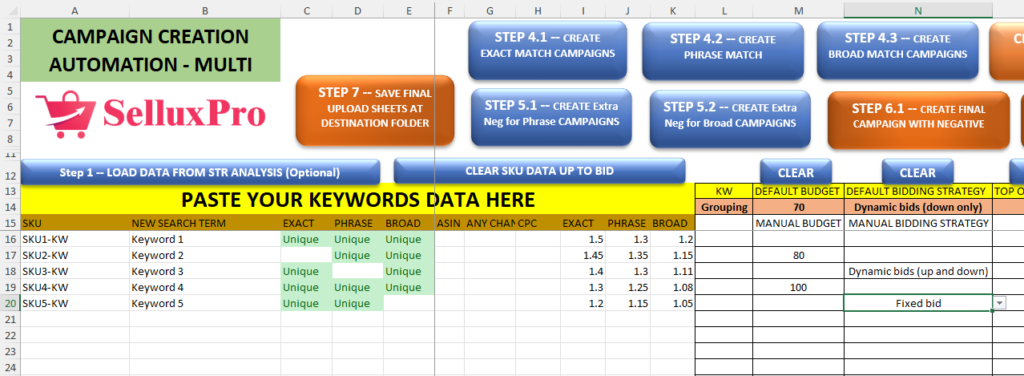
- Action: In Column N, select the desired bidding strategy for each SKU. The default is “Dynamic Bid (Down only).”
- Outcome: Bidding strategies are configured for the campaigns.
Step 7: Set Top of Search Percentage #
- Action: In Column O, specify the percentage for “Top of Search” for each SKU.
- Outcome: Top of Search percentages are defined for the campaigns.
Step 8: Set Strategy Name #
- Action: If desired, enter a strategy name in Column R for each campaign’s naming structure.
- Outcome: Strategy names are included for better identification of campaigns.
Step 9: Press STEP 2 Button #
- Action: Click on the “STEP 2 CLEAR KW” button.
- Outcome: This action generates the necessary naming structures for the campaigns.
Step 10: Press STEP 3 Button #
- Action: Click on “STEP 3 PREPARE A KW FOR 1 CAMPAIGN 1 KEYWORD.”
- Outcome: The tool prepares the campaigns for single keyword targeting.
Step 11: Create Campaigns #

- Action: Sequentially press the following buttons:
- STEP 4.1: “CREATE EXACT MATCH CAMPAIGNS”
- STEP 4.2: “CREATE PHRASE MATCH CAMPAIGNS”
- STEP 4.3: “CREATE BROAD MATCH CAMPAIGNS”
- STEP 6.1: “CREATE FINAL CAMPAIGN WITH NEGATIVE” (if using negative targeting)
- STEP 7: “SAVE FINAL UPLOAD SHEET AT DESTINATION FOLDER”
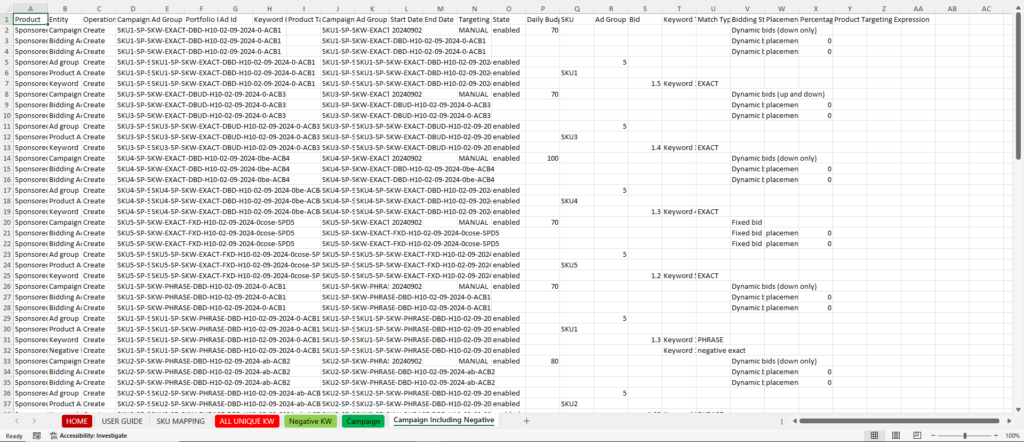
- Outcome: Campaigns for each SKU with the specified keywords and match types are successfully created and saved.
Post-Conditions #
- Campaigns for all 5 SKUs are created with their respective keywords, bid amounts, budgets, and targeting strategies.
- The final upload sheet is saved in the designated folder, ready for upload to Amazon.


